

This chapter describes importing and deploying the plug-in, and upgrading it. The three steps run in order: import once per Enterprise Manager site, deploy to the OMS, then deploy to every agent that will monitor a MySQL target.
Prerequisites for this page
- The
.opararchive for your Enterprise Manager line (24ai or 13.5), copied to the OMS host.- An Enterprise Manager administrator who can run Self Update and deploy plug-ins, and the repository
SYSpassword for the OMS deployment.- MySQL Connector/J placed on every agent host before that agent’s deployment (2.9).
Where to find it: Setup ▸ Extensibility ▸ Self Update for the import, Setup ▸ Extensibility ▸ Plug-ins for the deployments, and Deployment Activities on the same page to follow them.
Topics: 3.1 Import with Self Update · 3.2 Deploy to the OMS · 3.3 Deploy to agents · 3.4 Upgrading
3.1 Import with Self Update
Section titled “3.1 Import with Self Update”Enterprise Manager takes the plug-in in through Self Update, from the .opar archive Integration Plumbers supplies. Import it once per Enterprise Manager site; the deploy steps in 3.2 and 3.3 then work from the imported copy.
Copy 24.1.10.0.0_ip.em.xmys_2000_0.opar to a directory on the OMS host that the Enterprise Manager software owner can read, then import it from the console:
- Choose Setup → Extensibility → Self Update.
- Select the Plug-in folder.
- Choose Actions → Import, supply the full path to the
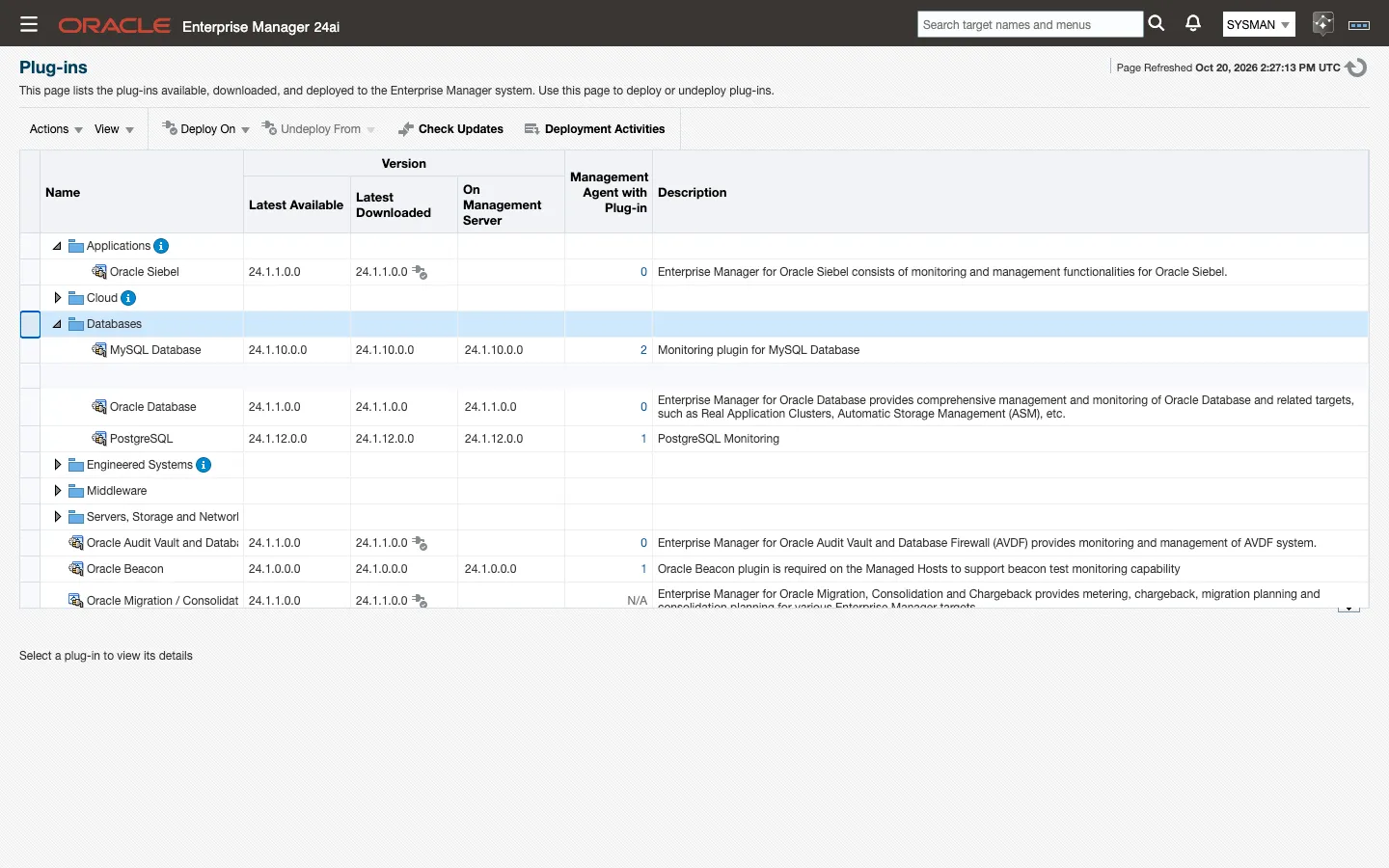
.oparfile on the OMS host, and confirm. - Wait for the import job to complete, then confirm the MySQL Database row shows version 24.1.10.0.0.
Or import it with EM CLI, as the Enterprise Manager software owner on the OMS host:
emcli login -username=sysmanemcli import_update -file=/u01/stage/24.1.10.0.0_ip.em.xmys_2000_0.opar -omslocalDone when the Plug-ins page (Setup ▸ Extensibility ▸ Plug-ins) lists MySQL Database under Databases with the release’s version in the Latest Downloaded column.
-omslocal tells Enterprise Manager the archive is already on the OMS host, which is the normal case. Only drop it when the file sits on a different host, and then supply that host and a credential set instead.
Note: Importing makes the plug-in available for deployment; it does not deploy it. Nothing about the plug-in appears in the console, and no MySQL target type exists, until you complete 3.2.
3.2 Deploy to the OMS
Section titled “3.2 Deploy to the OMS”Deploying to the OMS registers the three target types and their metric metadata, the compliance content, the Run EXPLAIN job type and the console pages.
From the console:
- Choose Setup → Extensibility → Plug-ins.
- Select MySQL Database in the plug-in list.
- Choose Deploy On → Management Servers.
- Supply the repository
SYSpassword when the wizard asks for it, and submit. - Follow the deployment from Deployment Activities, or with the status verb below, until it reports Success.
With EM CLI:
emcli deploy_plugin_on_server -plugin=ip.em.xmys -sys_password=<repository SYS password>emcli get_plugin_deployment_status -plugin=ip.em.xmysRepeat get_plugin_deployment_status until it reports Success.
Note: The OMS restarts during this step. The console is unavailable for several minutes and other administrators’ sessions end. Deploy in a change window on a production Enterprise Manager, and do not start 3.3 until the deployment status reads Success.
Confirm the result:
emcli list_plugins_on_serverDone when list_plugins_on_server lists ip.em.xmys at the release’s version and the Plug-ins page shows it in the On Management Server column.
3.3 Deploy to agents
Section titled “3.3 Deploy to agents”Every management agent that will monitor a MySQL target needs its own copy of the plug-in. Deploying to the OMS does not do this for you.
Before you deploy to an agent, place MySQL Connector/J on that agent host (2.9). A plug-in deployed to an agent that has no driver reports the driver message on every collection until the jar is in place; nothing is lost, but nothing is collected either.
From the console:
- Choose Setup → Extensibility → Plug-ins.
- Select MySQL Database.
- Choose Deploy On → Management Agent.
- Add the agents that will run MySQL collections (the agent hosts, not the MySQL servers) and submit.
With EM CLI, naming each agent as <host>:<port>:
emcli deploy_plugin_on_agent -agent_names="agent-host.example.com:3872" -plugin=ip.em.xmysSeveral agents go in one command, separated by ;. Confirm afterwards:
emcli list_plugins_on_agent -agent_names="agent-host.example.com:3872"Done when every agent that will monitor a MySQL target lists the plug-in, and the Add Target page offers the MySQL target types for that agent (4.2).
Note: Until the plug-in is deployed to an agent, the MySQL target types are not offered for that agent on the Add Target page (2.1, 4.2), and agent-side autodiscovery of MySQL instances (4.4) finds nothing on its hosts.
3.4 Upgrading
Section titled “3.4 Upgrading”From an earlier build to this release. No earlier build upgrades in place to this release. Install it fresh (3.1 to 3.3) and create the targets new; the onboarding script exports an existing estate and creates its targets on this release (4.7). The procedure below is for moving from this release to a later one on Enterprise Manager 24ai. On Enterprise Manager 13.5 an in-place upgrade is not proven: the 13.5 builds carry no upgrade lineage, so move a 13.5 installation to a later release by the fresh-install path above unless that release’s notes say otherwise.
Deploy a new version exactly as you deployed the first one: import it with Self Update (3.1), deploy it to the OMS (3.2), then deploy it to the agents (3.3). Do not undeploy the running version first: Enterprise Manager upgrades the deployment in place, and existing targets, their monitoring properties, their thresholds and their collected history carry forward.
Connector/J first. The plug-in reads MySQL Connector/J from the agent host instead of carrying it (2.9). Make sure the driver is in place on every agent before you deploy a new version to that agent; an agent without it stops collecting every MySQL target it monitors until the jar is there. The driver directory is outside the plug-in’s own directories, so upgrades leave it alone.
Upgrade order matters. Deploy the new version to the OMS first, let the OMS restart complete, then deploy to agents. Target-type metadata is activated on the OMS side; an agent running newer metadata than the OMS has activated reports collection errors until the OMS catches up.
A version that moves the target metadata version of a target type needs the full cycle above rather than an agent-only deploy; this release moved all three (10.4). Skipping the OMS restart does not fail the deploy (every step can report Success while Enterprise Manager keeps the previous metadata active) so verify after the agents are done rather than assuming. Confirm that the target types are live at their new metadata versions, and that the shipped conditions are present on a target of each type:
emcli get_threshold -target_name="mysql84-prod-cluster" -target_type="ip_mysql_cluster"A target type whose new conditions do not appear was stored but not activated; repeat 3.2, let the OMS restart finish, and redeploy to the agents.
Done when every target type reports its new metadata version and the shipped conditions appear on a target of each type.
Note: An in-place upgrade keeps what you have: every target, its monitoring properties and any threshold you customized carry forward, and collection resumes without intervention. Follow the procedure above, verify as described, and tell us if anything behaves differently (1.4).